Docker Swarm on Debian 12 (Bookworm)
Part 3: CephFS setup
Requirements
The pre-requisites for cephadm can be found below:
- Python 3
- Systemd
- Podman or Docker for running containers
- Time synchronization (such as chrony or NTP)
- LVM2 for provisioning storage devices
This setup will be done on the Debian 12 (Bookworm) VMs, using Docker as the container runtime.
Install cephadm on the first node
Install cephadm with the apt repository. The latest version available on Debian 12 (Bookworm) at the time of this writing is Pacific (16.2.13).
sudo apt update
sudo apt install -y cephadm

# apt will also install podman as a dependency for cephadm
# We can remove it if Docker is in use
sudo apt purge -y podman
sudo apt autoremove -y

CEPH_MONIP=`ip route get 9.9.9.9 | grep -oP 'src \K\S+'`
sudo cephadm bootstrap --mon-ip $CEPH_MONIP --allow-fqdn-hostname
Prepare other nodes
Ensure the nodes can SSH to each other using the root account.
Note
We don't actually care about host-level security, since we are using Docker anyway.
cat <<eof | sudo tee /etc/ssh/sshd_config.d/50-docker-swarm.conf > /dev/null
Match Host="NODE_01_IP,NODE_02_IP,NODE_03_IP"
  PermitRootLogin yes

eof
From the first node, generate and copy the root account's SSH public key to other nodes.
sudo ssh-keygen -t ecdsa -b 256
sudo ssh-copy-id root@docker-swarm-02
sudo ssh-copy-id root@docker-swarm-03
Then copy the Ceph's SSH public key to other nodes.
sudo ssh-copy-id -fi /etc/ceph/ceph.pub root@docker-swarm-02
sudo ssh-copy-id -fi /etc/ceph/ceph.pub root@docker-swarm-03
Expand the cluster
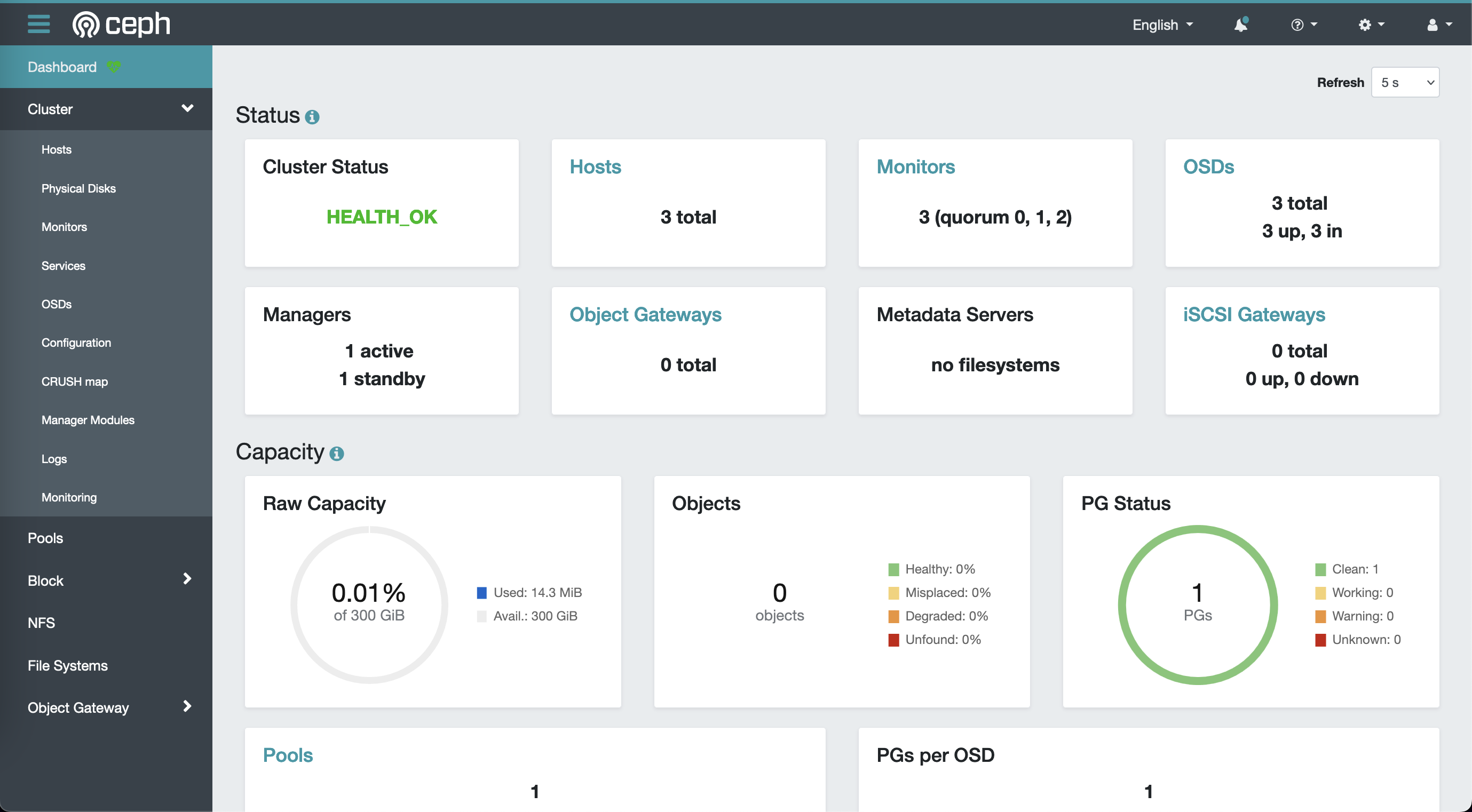
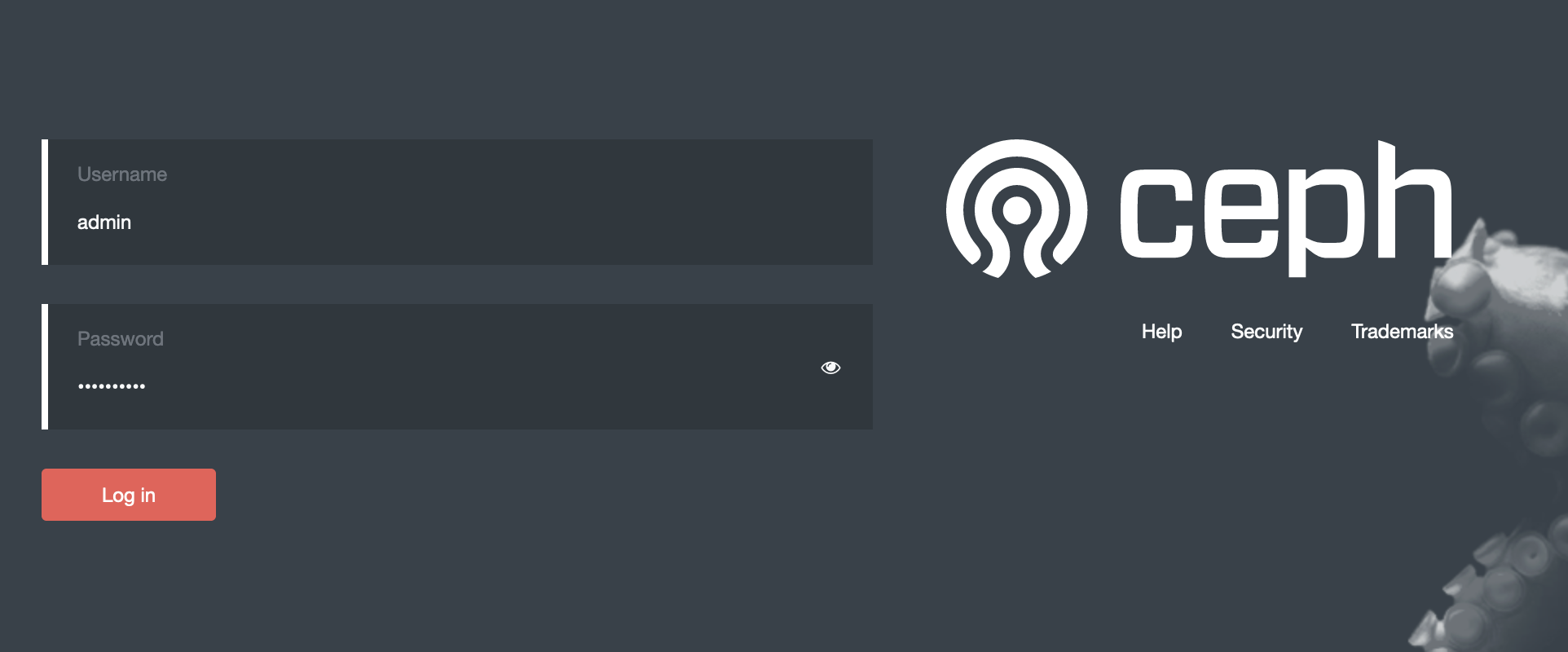
Browse the cephadm dashboard at https://NODE_01_IP:8443. Change the password if it is the first time logging in.
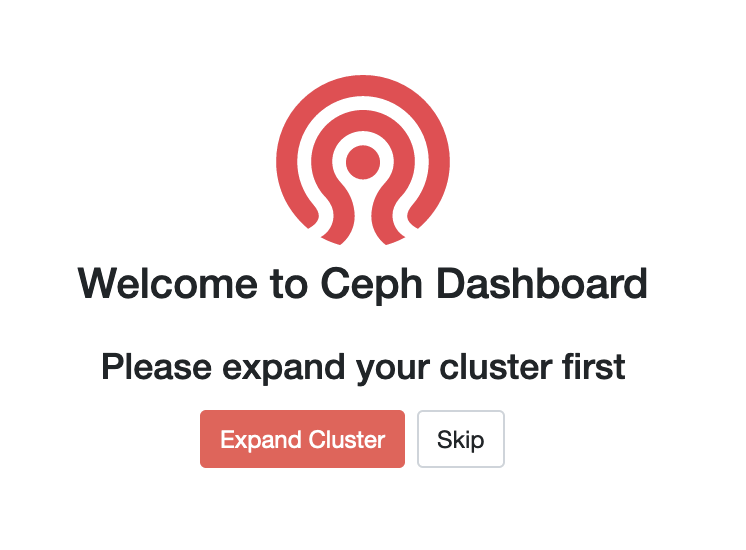
Select Expand Cluster
Add Hosts
On Add Hosts, select + Add.
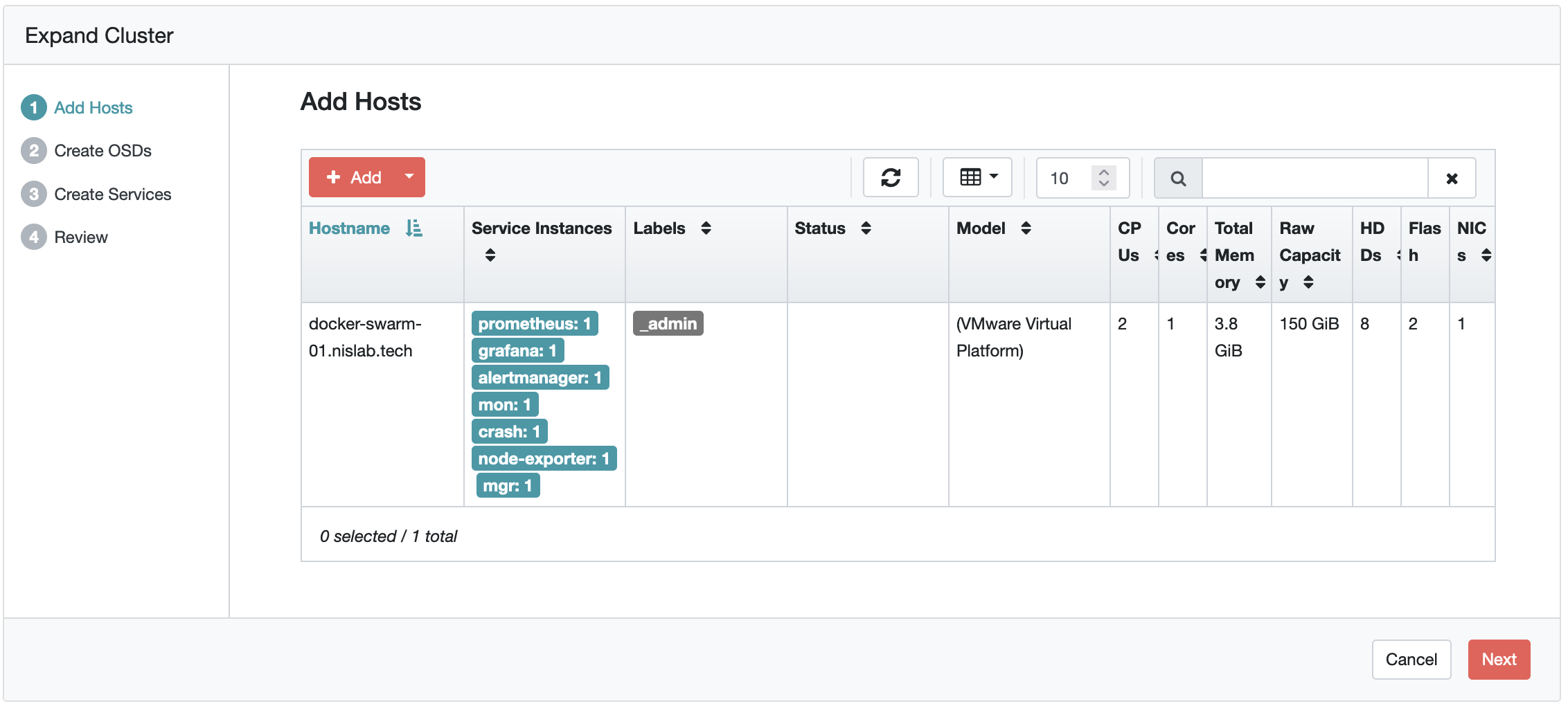
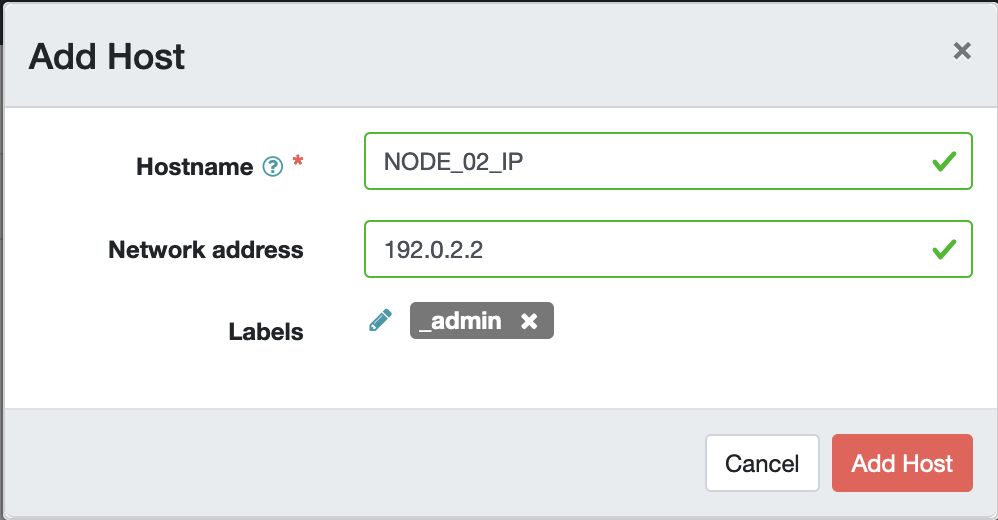
Specify the hostname and address of the other nodes, with the _admin tag on each. Select Add Host when finished.
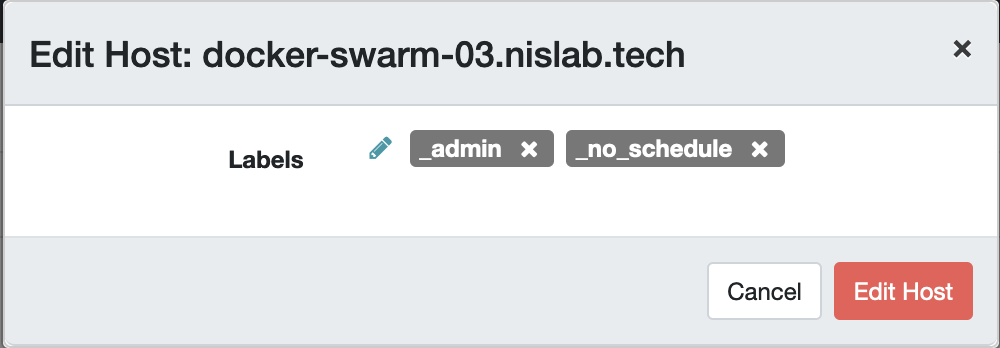
Edit the newly added hosts and remove the _no_schedule tag. Select Edit Host when finished.
Select Next to proceed to the Create OSDs section.
Create OSDs
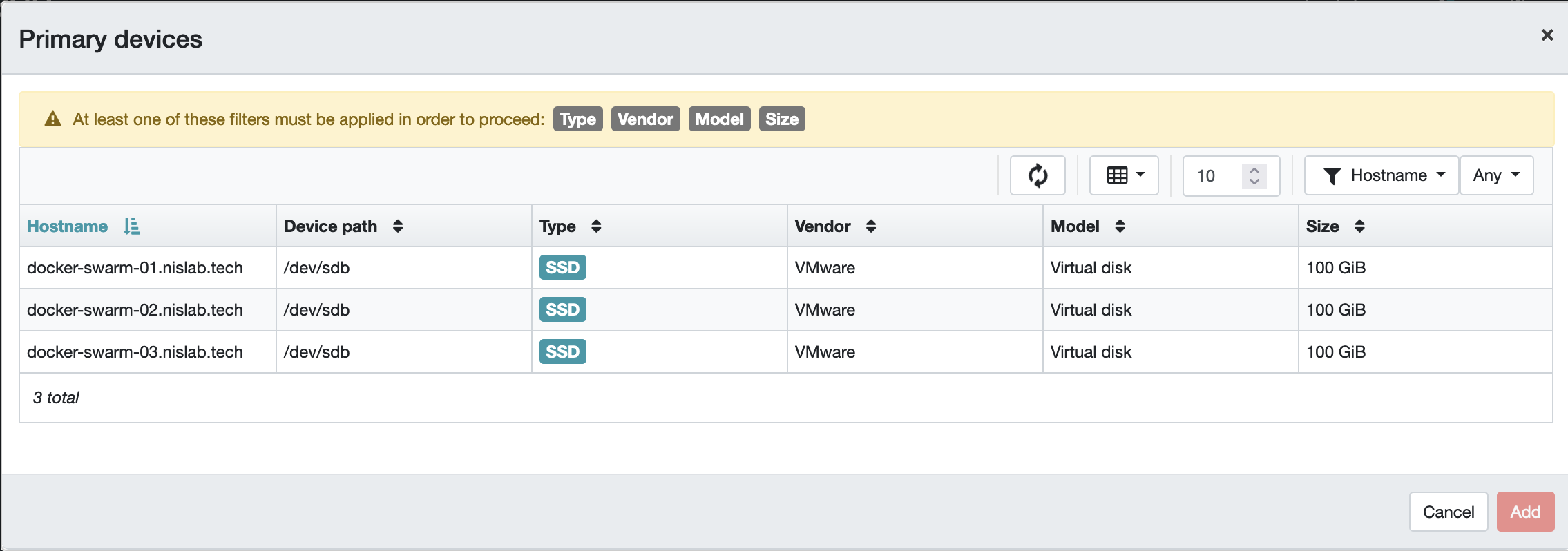
Expand Advanced Mode and click + Add on Primary devices.

Filter by Size and select the amount of storage available on the desired disks (e.g. 100GB). Click on Add.
Select Next to proceed to the Create Services section.
Create Services
Select + Create to add any services and the number of instances to deploy on the cluster.
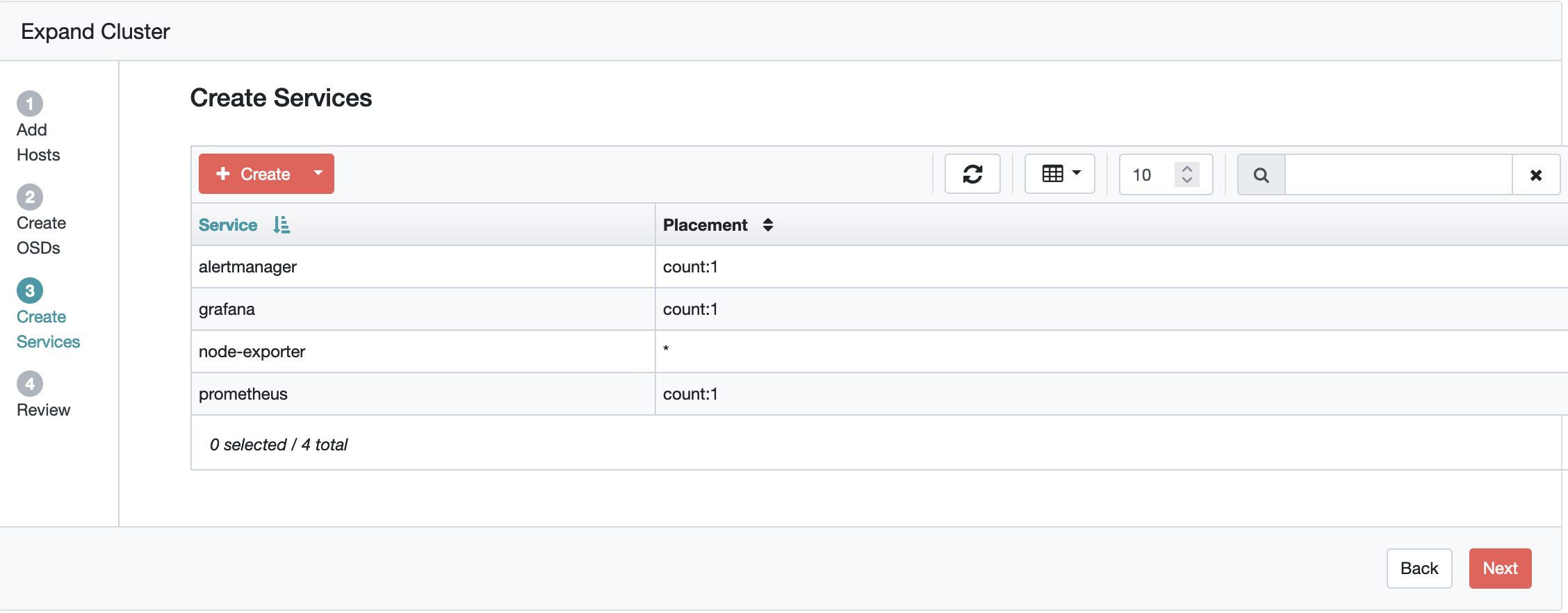
Specify the necessary parameters for each service that will be created. Then, select Create Service.
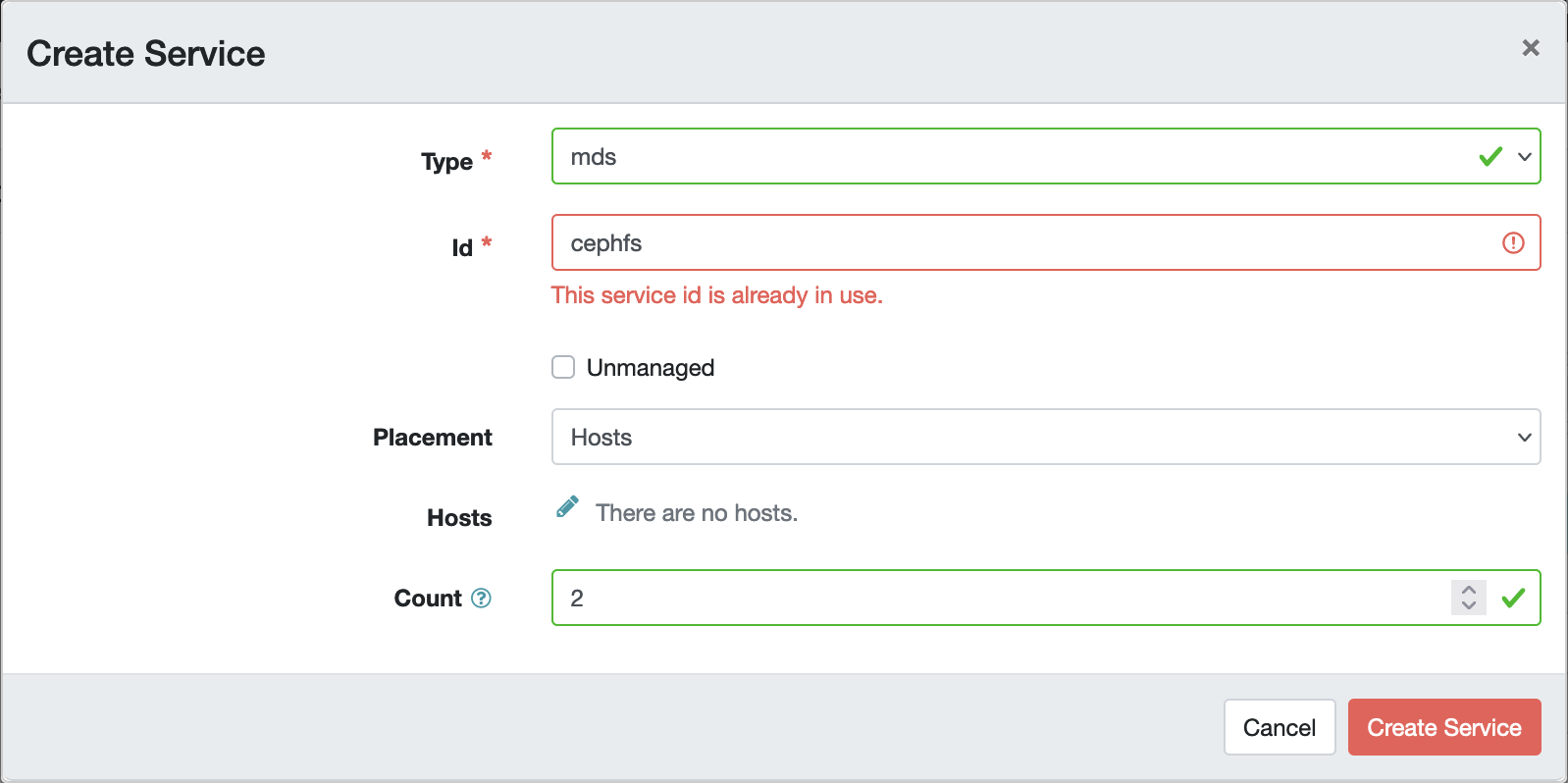
When finished, select Next to review the configurations. Click on Expand Cluster whenever ready.
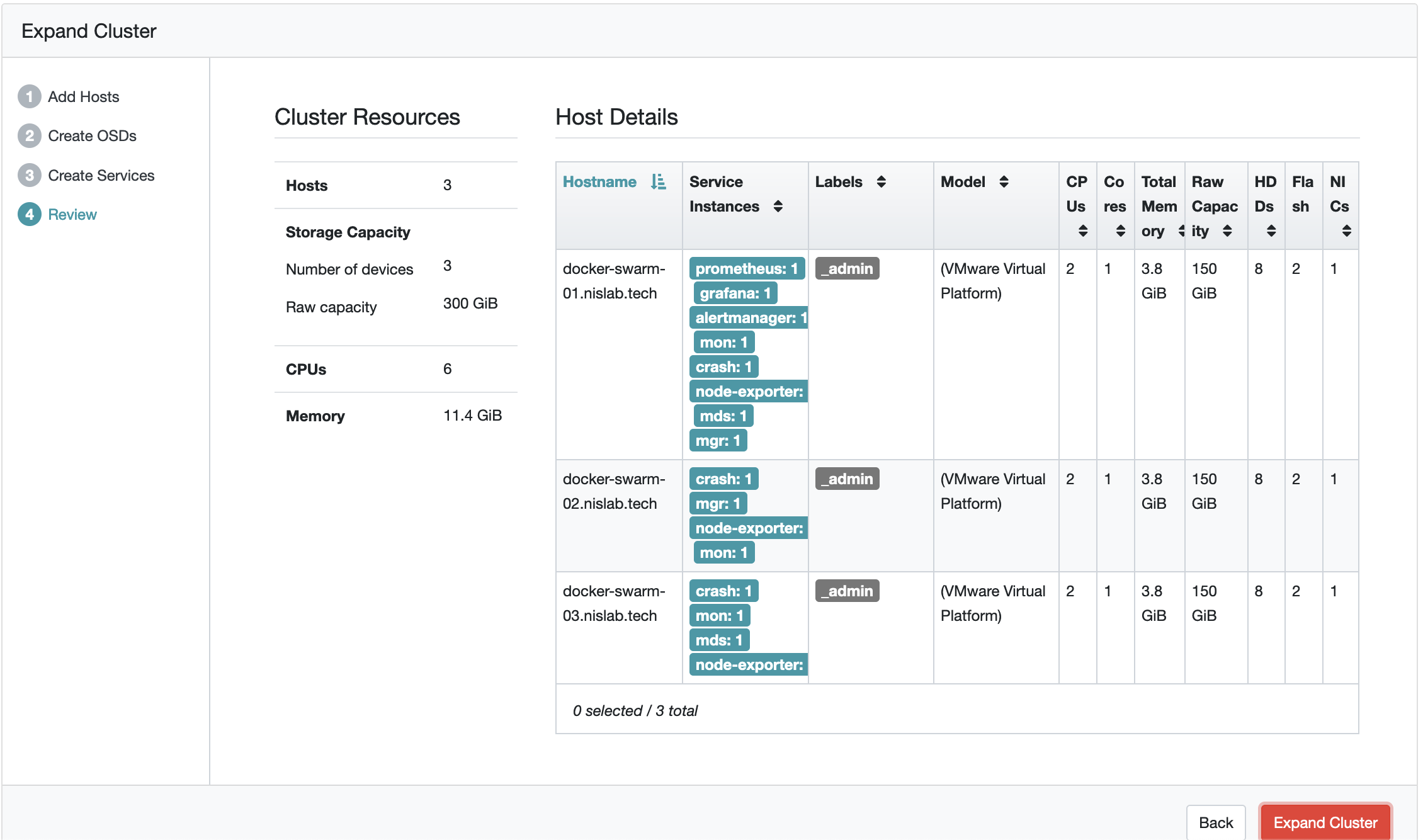
The dashboard should display a generic and healthy cluster.